Learn
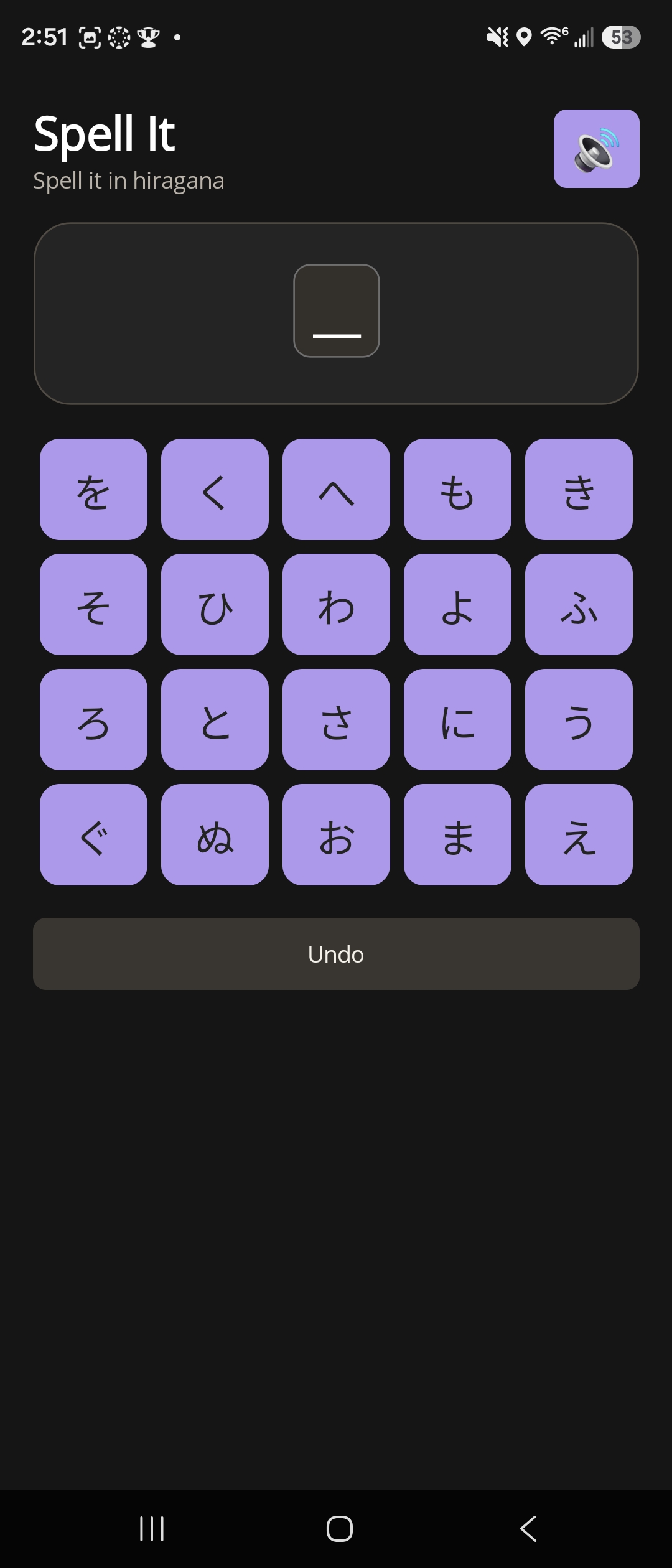
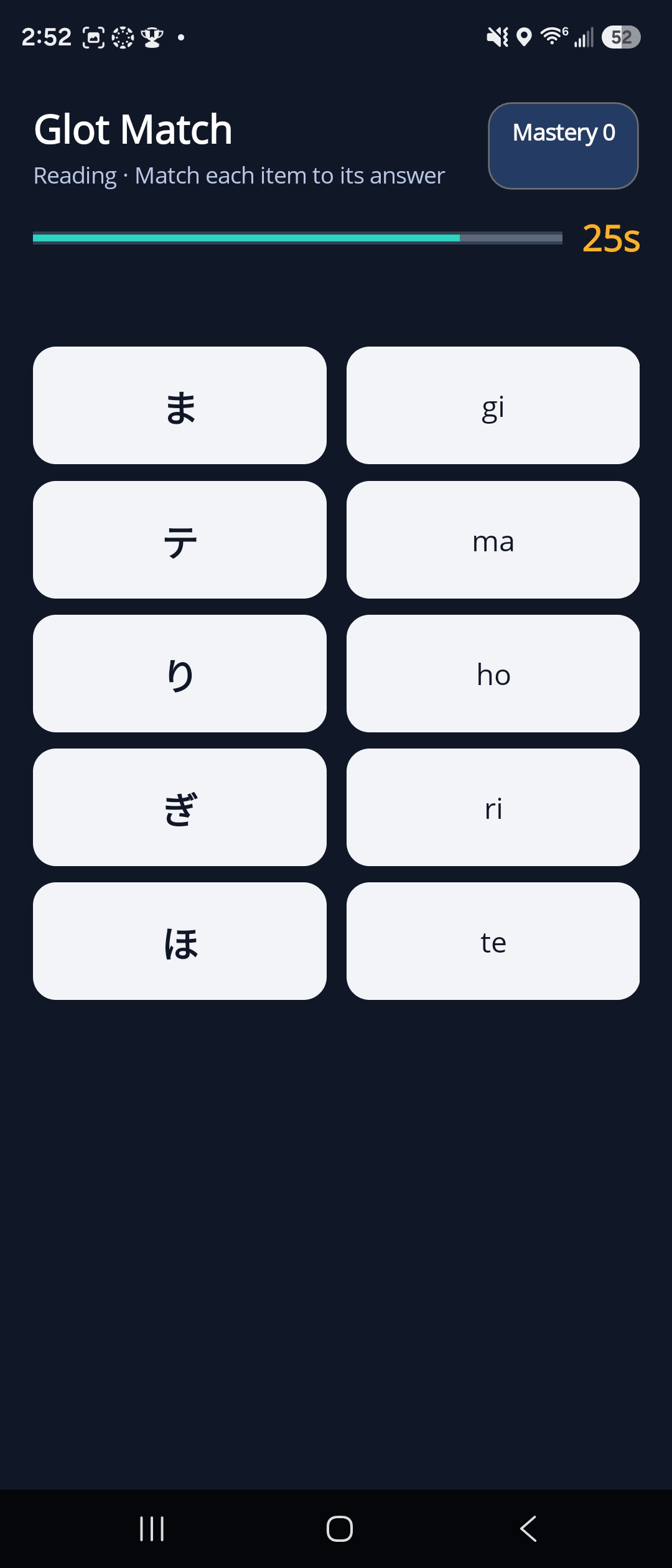
Practice material from your active quests through GlotQuest's learning games. Different activities exercise recognition, recall, listening, spelling, and writing.

Android & Windows alpha
GlotQuest is a Japanese-learning app that turns vocabulary into a personal learning adventure. Choose a quest, build knowledge through focused study, and practice with several different games.
The app is in active development. Alpha testers help find crashes, confusing interactions, incorrect content, and the rough edges that only appear during real study.
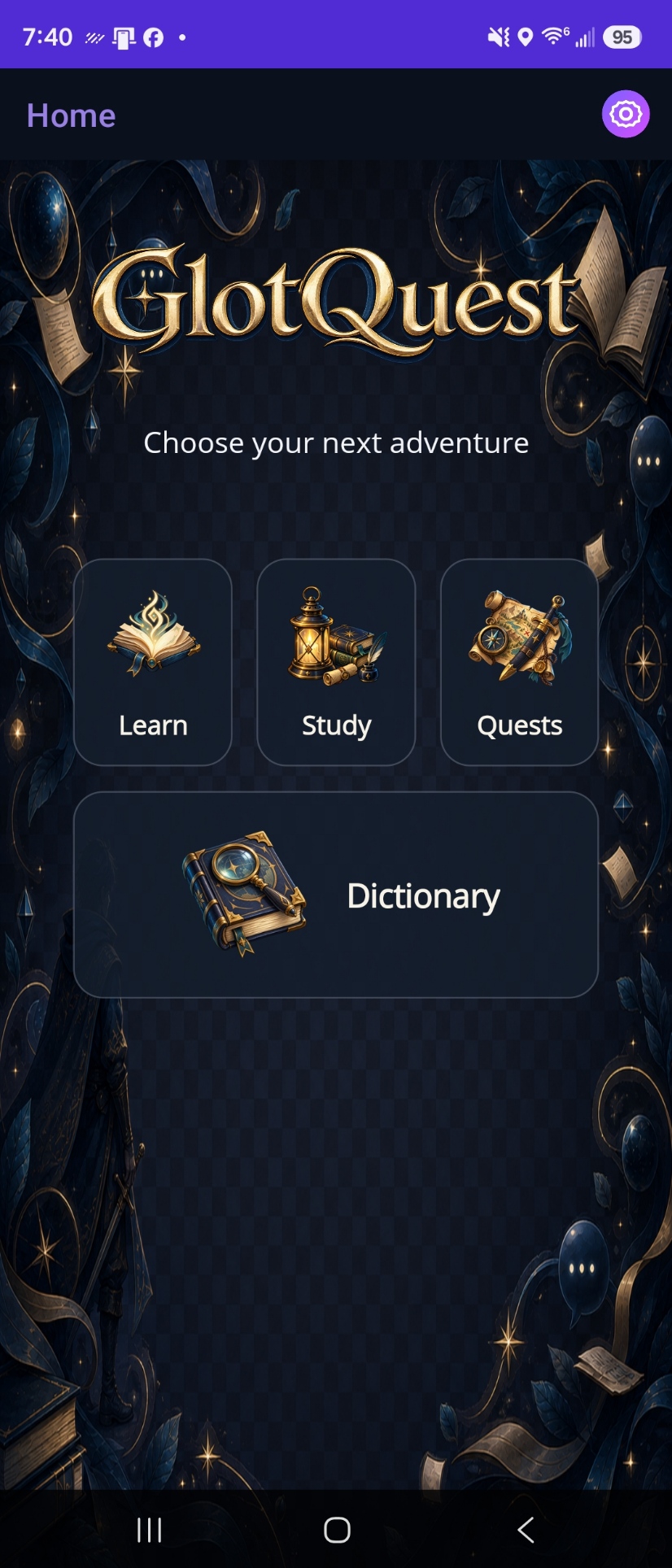
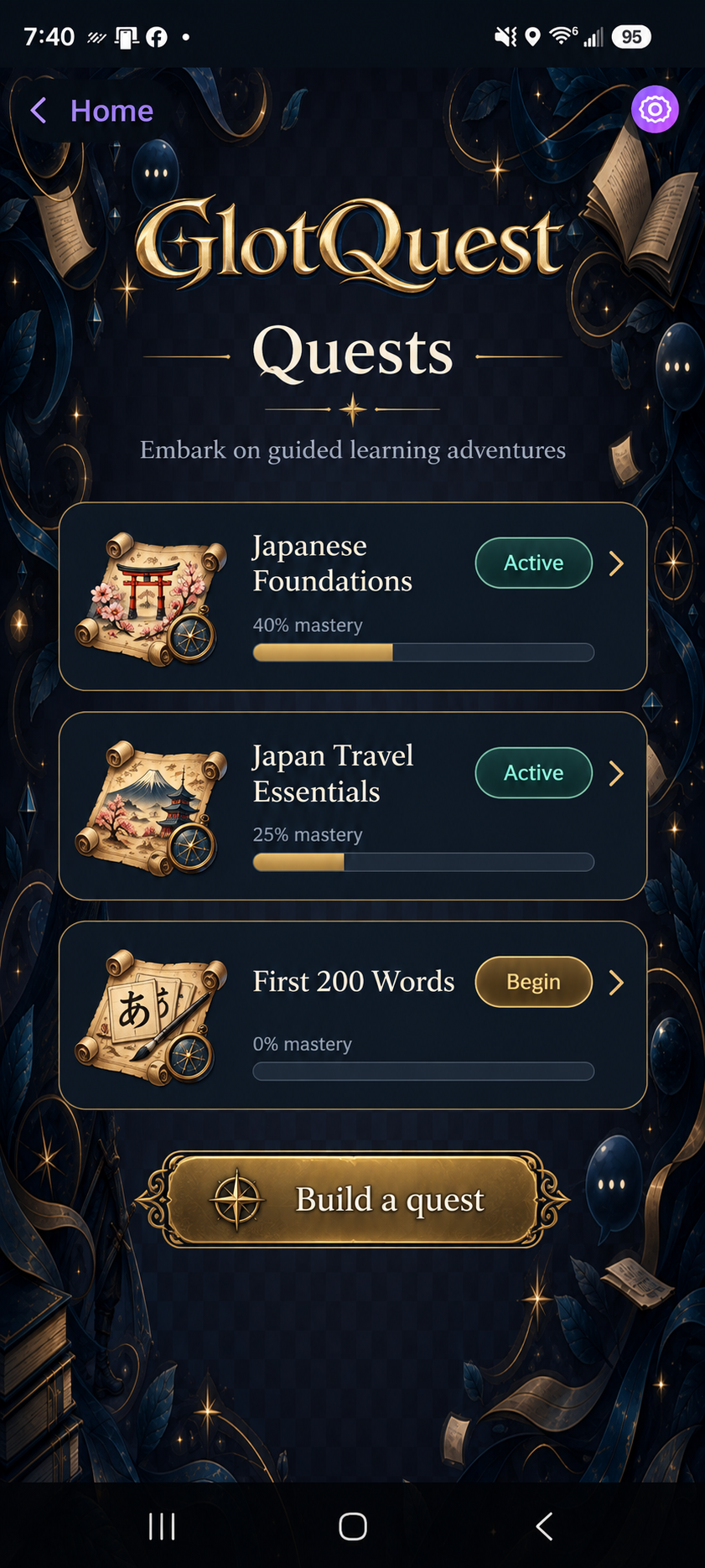

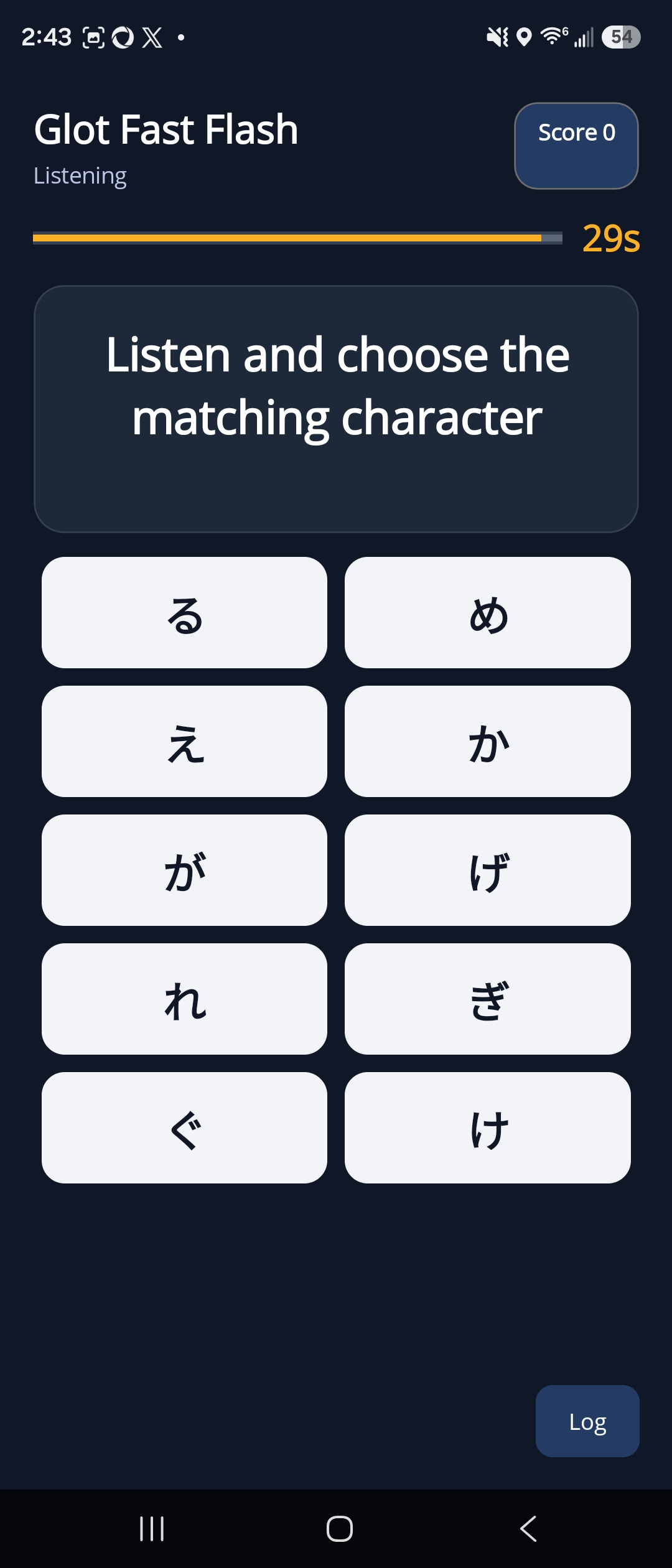
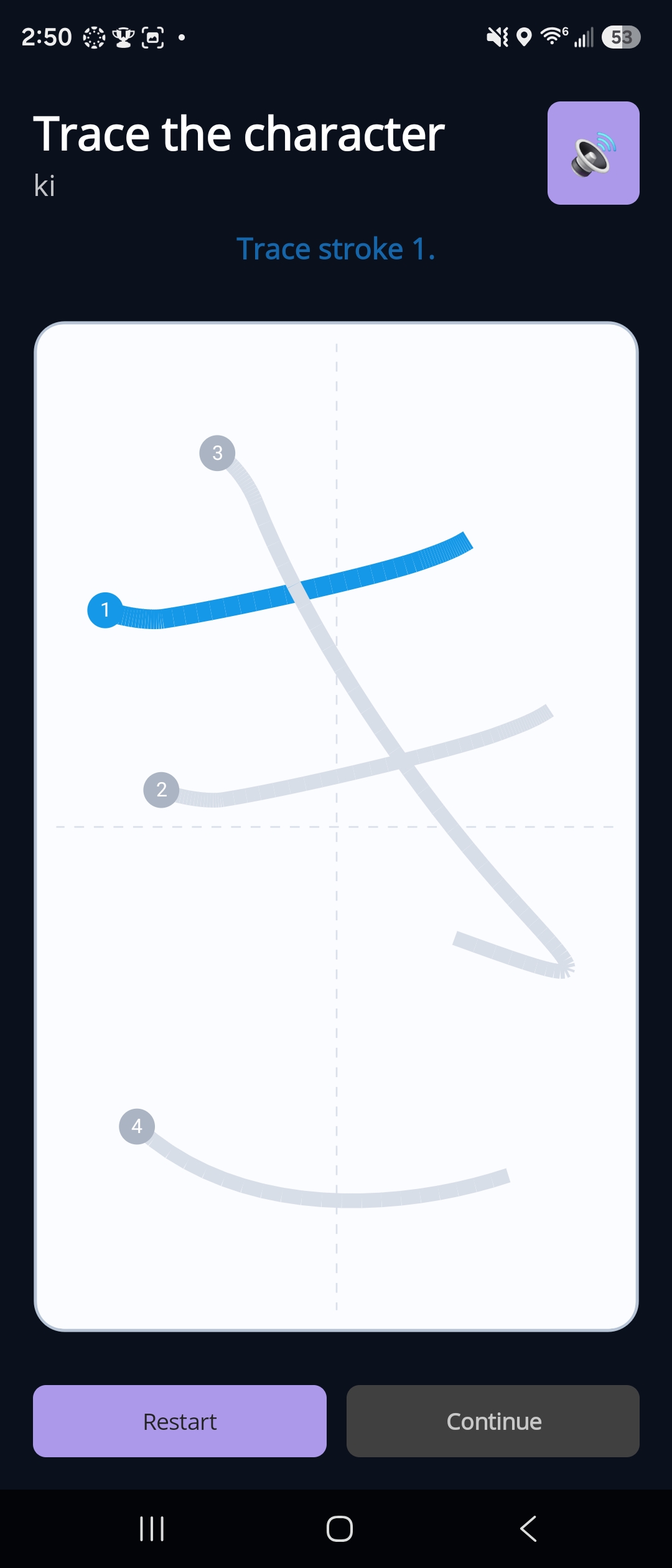
Home — choose Learn, Study, Quests, or Dictionary.
GlotQuest separates choosing what to learn from choosing how to practice it. Your active quests supply the vocabulary; Learn, Study, and the games give you different ways to work with that material.
Practice material from your active quests through GlotQuest's learning games. Different activities exercise recognition, recall, listening, spelling, and writing.
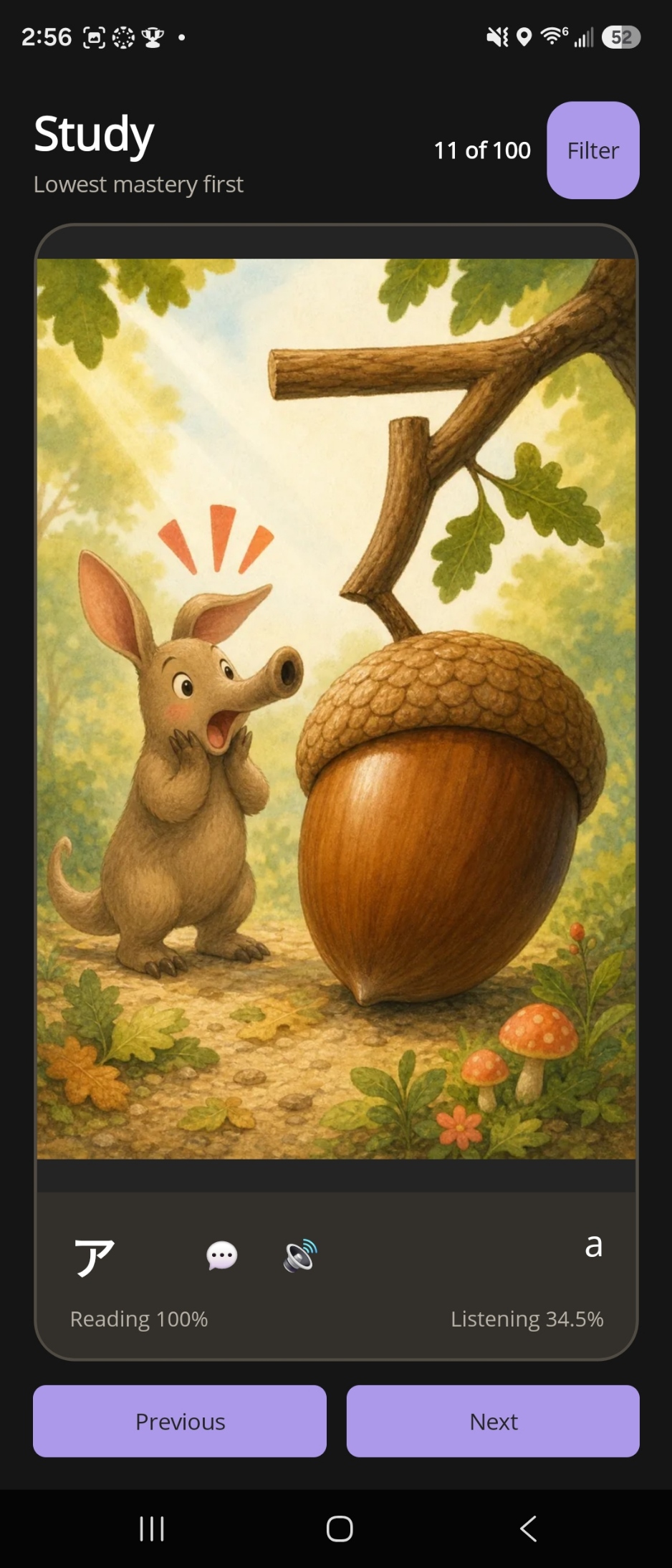
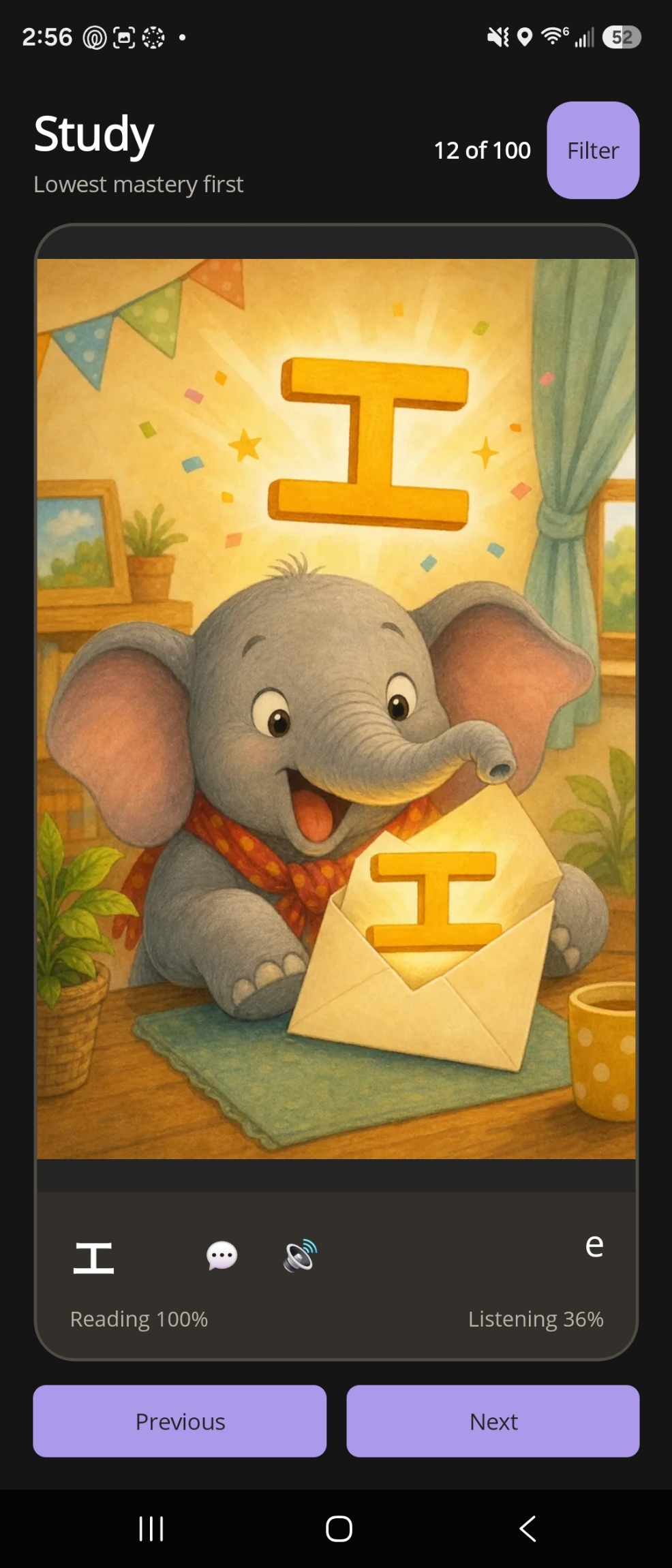
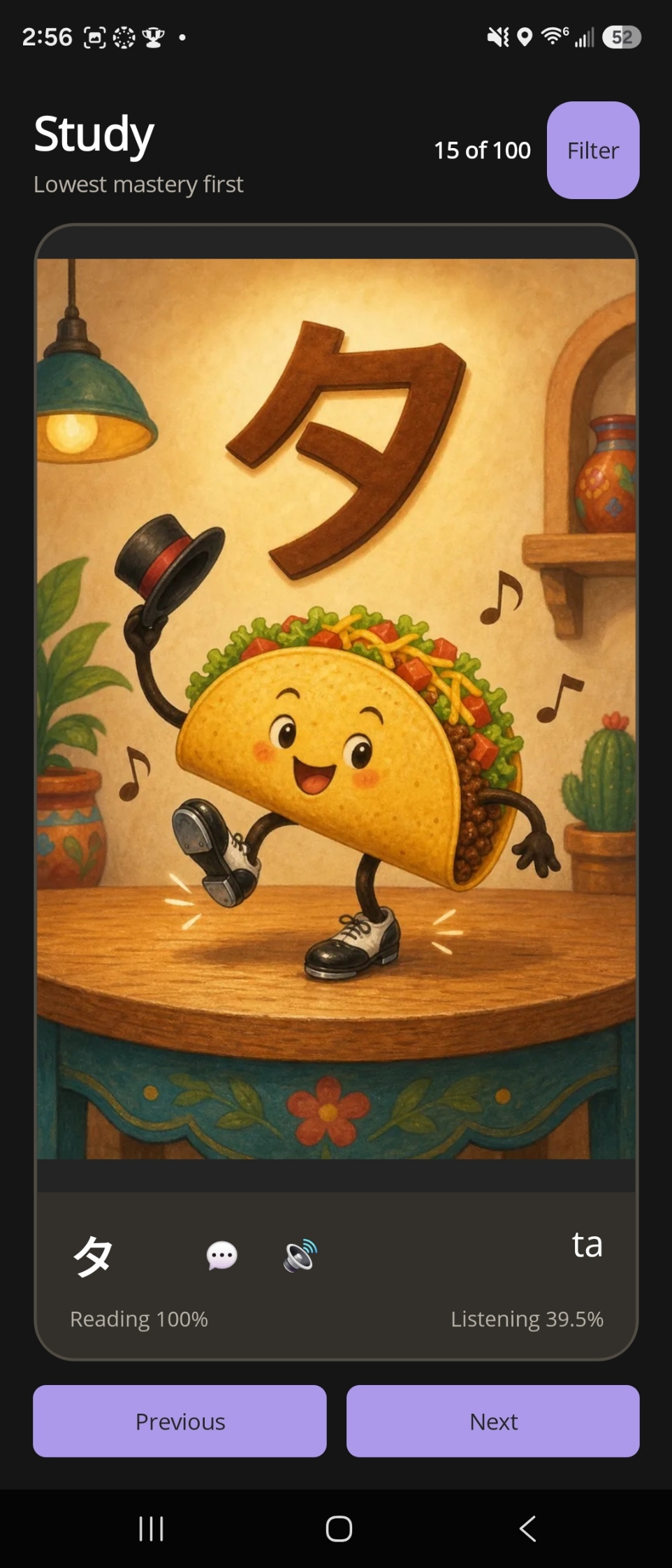
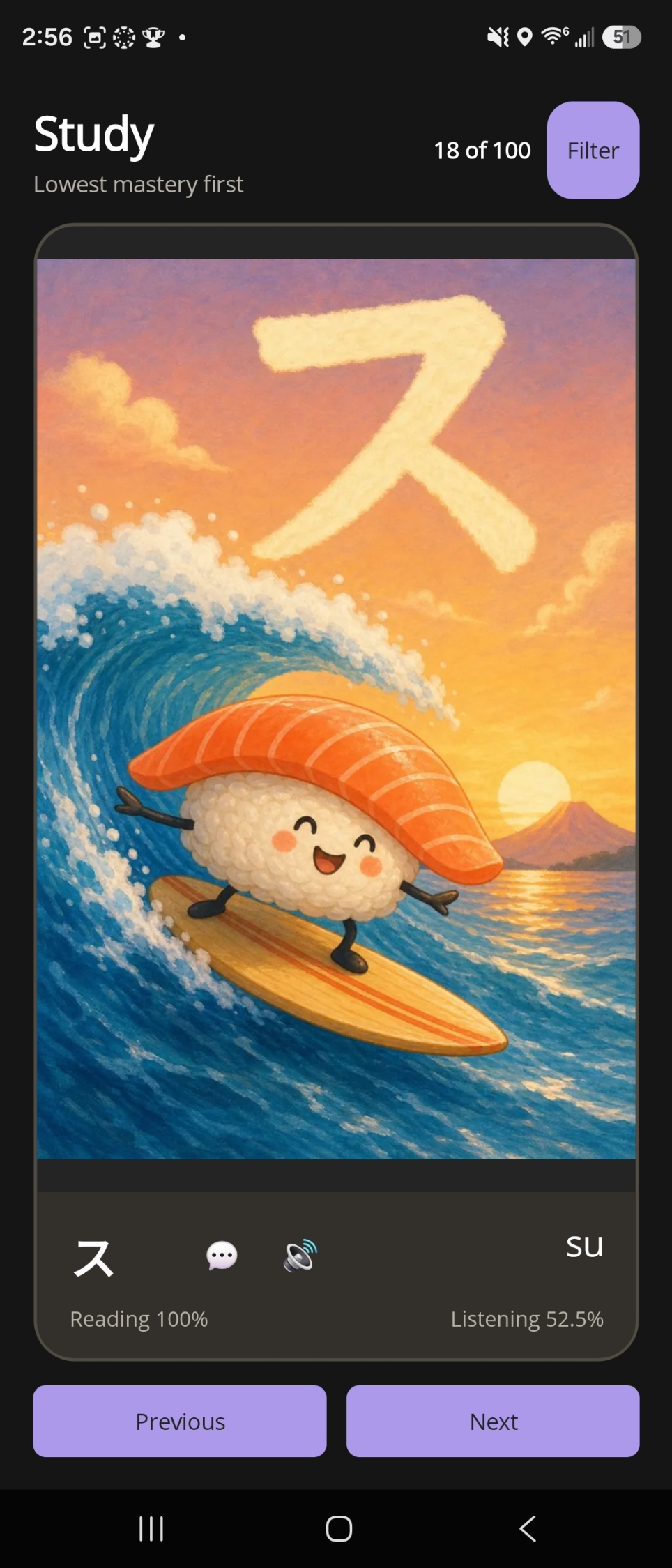
Review quest vocabulary directly with generated image cards or animated cards. Use Study when you want to examine the material without the pressure of a game.
Choose which collections of vocabulary are active, select available skill options, and follow your mastery. You can also build a personal quest from Japanese subtitle content.
Look up Japanese words and writing-system details independently of your current quests, then explore meanings, readings, and related information.
A quest is the subject matter you have chosen to learn. Activating a quest makes its vocabulary available to Learn and Study. This lets you focus practice on material that matters to you instead of working through one fixed, universal list.
GlotQuest includes built-in quests and can create personal quests from Japanese subtitles. Imported subtitles are matched against the dictionary so their vocabulary can become study material. You can activate more than one quest, change available skill options, and monitor mastery from the Quests screen.
Choose your platform below. Download only from this page, and check that the displayed version matches the version and build shown in GlotQuest Settings when reporting a problem.
Windows 10/11
Android
GlotQuest uses voices installed by Windows. If Japanese pronunciation is silent or no Japanese voice is available, install a Japanese speech voice before using pronunciation activities.
Voice names and Settings labels can vary slightly between Windows versions. When reporting an audio problem, include your Windows version and the Japanese voice shown in Settings.